Hal-Assisted Onboarding
The fastest way to onboard a new MSP client. You ask Hal in chat, Hal walks through the steps, runs the API calls, and reports back. Same end-state as the manual guides — same Azure app registration, same Google Workspace DWD authorization — but driven through dialogue instead of dozens of admin-portal clicks.
What you need
- Hal admin role in your MSP portal (you, as the MSP owner, are always an admin; you can grant the role to other staff members in Settings → Admin Users).
- Global Administrator access in the customer’s Microsoft 365 tenant (for M365 onboarding) — same prerequisite as the manual flow.
- Super Administrator access in the customer’s Google Workspace (for GWS onboarding) — same prerequisite as the manual flow.
You do not need: Azure portal access of your own, a GCP project, a JSON key, scope lists copied to your clipboard, or a memorized list of tenant IDs. Hal handles all of that on your behalf.
The four-step lifecycle
Hal-assisted onboarding splits the work into four discrete steps, each one its own chat command. You can run them in one sitting or spread them across days — the state is durable between steps.
| Step | What you say in chat | What Hal does |
|---|---|---|
| 1. Stand up the customer | “Set up Acme Corporation as a new customer” | Creates the customer’s dedicated log store and registry entry. Now appears on /clients. |
| 2. Authorize tenant access | “Connect M365 for Acme” (or GWS) | Walks you through Microsoft / Google sign-in or DWD paste. Stores credentials. Now appears on /logs#tenants. |
| 3. Activate ingestion | “Enable Acme’s M365 ingest” | Opens the log source, flips ingest on. Now appears on /logs#sources; first cycle backfills the default window. |
| 4. Re-test later | “Test Acme’s M365 access” | Runs a live API call with the stored credentials to confirm they still work. |
The decoupling matters: an MSP can authorize 5 tenants on Friday and flip ingest on Monday. Or smoke-test credentials without committing log volume. Or pause ingest temporarily without losing authorization. Each step is reversible/redoable independently.
Step 1: Stand up the customer
Open the chat in your MSP portal and say something like:
“Set up Acme Corporation as a new customer, code acme”
Hal will:
- Validate the routing key (lowercase letters/digits/dashes, must
start with a letter; this is what shows up in log-source names like
acme-m365). - Create a dedicated, isolated log store for Acme with locked-in 365-day retention.
- Create the
acmerow in Hal’s customer registry.
This step is purely Hal-side. No credentials yet, no customer-side
clicks — you’re just declaring the customer’s existence in your
fleet. Visit /clients to see the new row.
Step 2: Authorize tenant access
For each Microsoft 365 or Google Workspace tenant Acme has, you authorize Hal to read their logs.
Microsoft 365 (device code flow)
“Connect M365 for Acme”
Hal returns a short user code and a sign-in URL:
Open
https://microsoft.com/deviceloginin any browser, sign in as a Global Admin for Acme’s tenant, and enterB7K9-X4M2. I’ll wait.
You open the URL in any browser, sign in with the customer’s Global Admin credentials, and type the code. Microsoft shows you the permissions Hal is requesting — four delegated scopes that let Hal do the rest of the setup on your behalf:
Application.ReadWrite.AllAppRoleAssignment.ReadWrite.AllDelegatedPermissionGrant.ReadWrite.AllDirectory.Read.All
That screen also has a checkbox, Consent on behalf of your organization. You do not need to check it. Click Accept and Hal receives the permissions for your own admin sign-in — which is all it uses: Hal completes the setup with your session and discards the token immediately afterward. Checking the box additionally pre-approves the app across your whole tenant, so a future admin re-running onboarding or a repair won’t be prompted again. It’s a convenience, not a requirement — either choice completes onboarding.
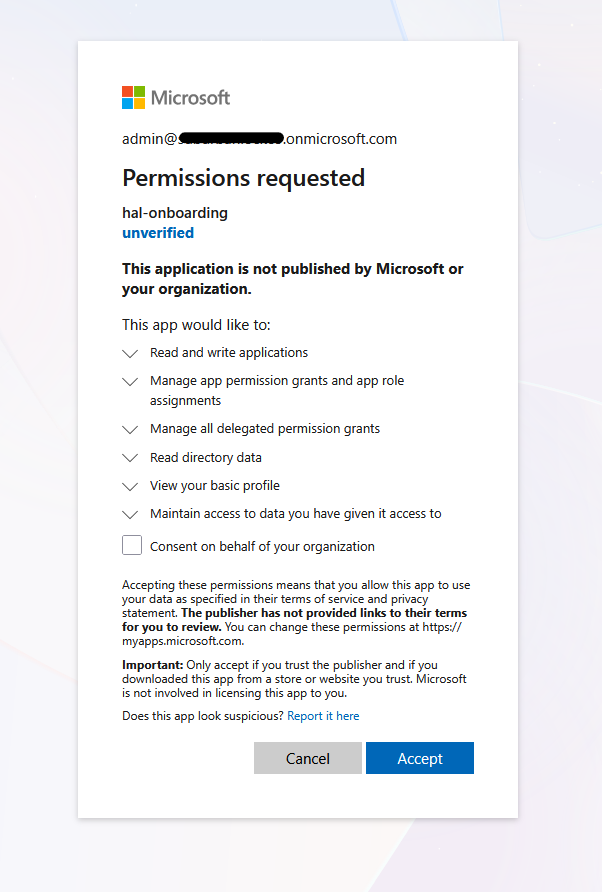
These are delegated permissions — they’re the customer admin’s permissions that Hal exercises during this single onboarding call. Hal drops the resulting token immediately after the setup is done.
Once you accept, Hal:
- Creates an app registration named
hal-siem-log-collectorin the customer’s tenant, with the full canonical permission manifest declared at creation (Portal “Configured permissions” tab shows the complete list immediately, no “Other permissions granted” overflow). - Attaches 15 read-only application permissions (12 Microsoft Graph,
3 Office 365 Management API) and one delegated baseline scope
(
User.Read) — same shape Microsoft’s Portal “New registration” produces by default. - Grants admin consent on each application permission programmatically,
plus a tenant-wide consent grant for
User.Read(the green-check equivalent of clicking “Grant admin consent” in the Portal). - Mints a 24-month client secret with the description
hal. - Reads the tenant’s verified domain list from Microsoft Graph and stores them for routing.
- Asks you to confirm: “You signed into Acme Corporation
(acmecorp.com), tenant ID
abc-123. Confirm this is the correct Azure tenant?”
Confirming persists everything to Hal’s customer database. Rejecting drops the token and writes nothing — useful if you signed into the wrong tenant by accident.
End state: an app registration named hal-siem-log-collector
visible in Acme’s Azure portal under Microsoft Entra → App
registrations, structurally identical to what the manual guide
would produce (same 15 application permissions, same User.Read
delegated scope, same admin consent state, same secret description).
What Hal keeps afterward — no standing write access
The only credential Hal stores is the hal-siem-log-collector client
secret, and that app is read-only (15 read permissions, zero write).
That’s the sole standing access Hal has to your tenant, and it can never
write to it.
The write permissions on the consent screen belonged to the sign-in
app (hal-onboarding) and were exercised through your admin’s
interactive session — Hal keeps no credential that can use them again.
hal-onboarding is a public app with no client secret, Hal requests no
refresh token, and it discards the access token the moment setup
finishes. Any future write (e.g. repairing a permission you accidentally
change) requires your Global Admin to sign in again at
microsoft.com/devicelogin — Hal cannot do it on its own.
One thing does remain: a consent record for hal-onboarding under
Enterprise applications (so a future repair doesn’t re-prompt). It is
inert without an admin sign-in, but you’re free to delete it any time
(Enterprise applications → hal-onboarding → Properties → Delete, or
revoke its permissions). Removing it doesn’t affect monitoring — that
runs entirely on the read-only collector — it just means the next repair
or re-onboarding will ask your admin to approve the permissions once more.
Google Workspace (service account and domain-wide delegation)
“Connect GWS for Acme, admin email is admin@acme.com”
Hal returns paste instructions:
Open
https://admin.google.comsigned in as admin@acme.com, navigate to Security → Access and data control → API controls → Manage Domain Wide Delegation → Add new. Paste this Client ID:114291782315270707603. Paste these OAuth scopes (comma-separated, no spaces):https://www.googleapis.com/auth/admin.reports.audit.readonly,https://www.googleapis.com/auth/admin.directory.user.readonly,https://www.googleapis.com/auth/apps.alertsClick Authorize. Reply ‘done’ when complete.
You complete the paste in Acme’s Workspace Admin Console. The Client ID is HAL AI’s fleet-wide service account — one paste authorizes Hal to act as the named admin via domain-wide delegation. No service account, GCP project, or JSON key on Acme’s side.
When you reply “done”, Hal:
- Calls Google’s Directory API impersonating
admin@acme.comto verify the DWD paste worked. - Reads the workspace’s display name and verified domains.
- Asks you to confirm: “DWD verified. I’m now authorized as
admin@acme.com in Acme Corporation, customer ID
C0xxx. Confirm this is the correct Workspace?”
Confirming persists everything. Rejecting drops without writing.
Step 3: Activate ingestion
When you’re ready for log volume to start flowing:
“Enable Acme’s M365 ingest” (or “Enable Acme’s GWS ingest”)
Hal opens the log sources, refreshes the routing rules, and the first ingest cycle (within minutes) backfills the default window — around a week for M365, four weeks for GWS.
You can see the new sources on /logs → Sources once events start
flowing.
Step 4: Re-test later
Customers occasionally rotate their secrets, revoke DWD, or remove admin permissions. To check whether Hal’s stored credentials still work without re-onboarding:
“Test Acme’s M365 access”
Hal runs a live API call with the stored credentials and reports back. If something’s wrong, the error tells you exactly what happened: secret expired, app reg deleted, DWD revoked, admin demoted, etc. — with the next-step instruction.
Audit and recovery
After onboarding, Hal can audit and repair the per-customer app registration without re-onboarding from scratch. Useful when an MSP or customer admin makes an edit in the Azure Portal that drifts the app reg away from canonical state, or when a permission was missed during initial setup.
Audit a tenant’s app registration
“Audit Acme’s M365 permissions” (or “check Acme’s app registration”)
Hal queries the customer’s tenant using stored read-only credentials (no admin re-consent needed) and reports across three layers:
- Application role grants — are all 15 canonical permissions actually granted?
- Manifest (
requiredResourceAccess) — does Portal’s “Configured permissions” tab list the canonical set? - Delegated baseline — is the tenant-wide
User.Readconsent present (the green-check on the Delegated row)?
The audit tags the drift it finds with one of: none /
missing_roles_only / manifest_drift / delegated_only /
extras_present / multiple — and recommends the right repair
tool based on what’s actually wrong.
Light-touch repair — missing role grants only
“Repair Acme’s M365 permissions”
For drift_class: missing_roles_only. Mirrors the onboarding device-
code flow: customer Global Admin signs in once at
microsoft.com/devicelogin, Hal POSTs the missing role grants
against the existing app registration. No new app reg, no new client
secret, no Hal-side state change. Useful when Hal adds a new
permission to its canonical list and existing customers need it
back-filled.
Full reset — delete-and-recreate
“Reset Acme’s M365 app registration”
For any other drift class (manifest_drift, delegated_only,
extras_present, or multiple) — including the cases where an MSP
edited the manifest in Portal, accidentally added an over-privilege
permission, deleted the User.Read consent, or the secret got
re-uploaded with a non-canonical description. After a customer
Global Admin signs in via device-code, Hal:
- DELETEs the existing app registration in the customer’s Azure tenant.
- Re-runs the full onboarding flow — same code path that produced the original app registration, so the end state is bit-for-bit identical to a fresh onboarding.
- UPSERTs the new
client_id/ secret / expiration in Hal’s customer database (keyed onazure_tenant_id, so the rest of Acme’s Hal state — tenant rows, log store and sources, ingest cursors, domain mappings, lookups — is preserved unchanged).
A brief gap on the next ingest cycle: any in-flight call using the old secret fails once, the next poll picks up the new secret and resumes. No data loss; ingest is at-least-once with dedup.
The reset is admin-only and requires verbal confirmation in chat before the destructive DELETE happens. Hal also checks that the admin’s device-code sign-in landed in the same tenant as the stored credentials before proceeding — protects against accidental cross-tenant resets when the admin manages several customers.
Questions? Contact us.